
7/22/2026 · Goodchoice Team
How to Save Transparent WebP Images as PNG
If you need to save transparent WebP images as PNG, the hard part is usually not clicking Download. The difficult part is getting a file that is right for the next job: the right image candidate, the right dimensions, and the right format. A transparent logo or product cutout can look correct over a dark website, then acquire an unwanted box when saved in the wrong format. That is especially disruptive for brand assets, stickers, ecommerce cutouts, and UI elements placed on changing backgrounds. This guide explains a repeatable Chrome workflow that replaces guesswork with a clear source-and-format decision.
Why this problem keeps appearing in Chrome
WebP can support transparency, but many downstream workflows still expect PNG for transparent image assets. JPG does not store alpha transparency, so converting a transparent image to JPG requires a solid background choice. What you see in the browser is not always the file you should keep. Websites optimize assets for layouts, connection speeds, and device screens. Your job after the download may be very different: add an image to a report, make a design reference, upload a product image, build a presentation, or preserve an asset for later review. A deliberate download workflow gives you control over that handoff.
What the ordinary Save Image command misses
A screenshot may capture the page background instead of the transparent pixels. Uploading files to a random converter can also be a poor fit when the asset belongs to a client or unreleased product. It also hides an important distinction: an image can be displayed at one size while another candidate is available to the page. The filename rarely answers that question. Before you commit to a file, look for practical signals such as preview, dimensions, source variation, and whether the image is a decorative element or the content you came to collect.
A browser-first workflow with Local Image Saver
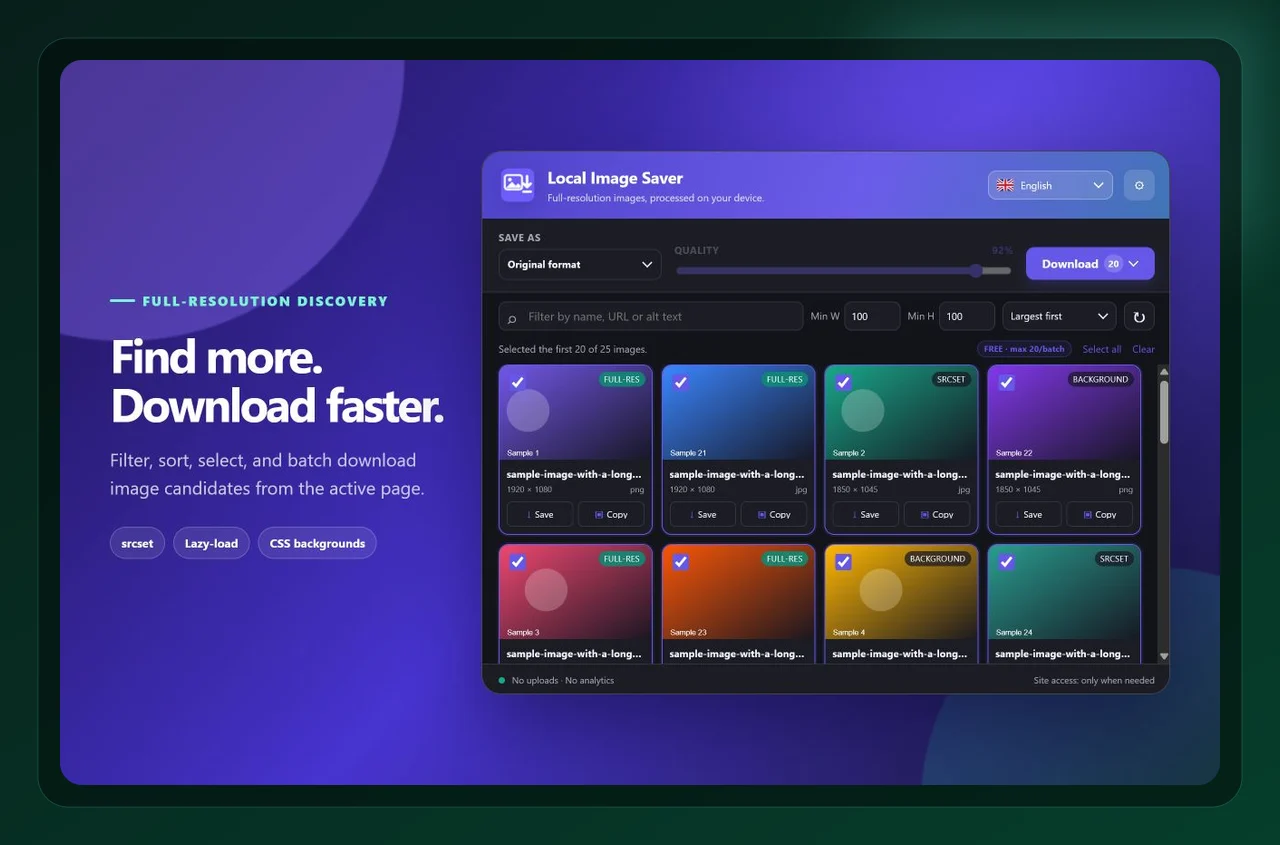
Local Image Saver is built for that decision point. It scans images available in the active page so you can review candidates in one place, then lets you save an original or choose PNG, JPG, or WebP for the selected items. locate the correct source candidate and save it explicitly as PNG. Local Image Saver gives you a format decision before download, so the resulting file is prepared for common design, presentation, and publishing workflows. The key advantage is that discovery, selection, conversion, and download remain in one browser workflow. That reduces context switching and makes it easier to repeat the process across several pages.
Step-by-step: save transparent WebP images as PNG
1. Start with the page and the outcome you need
Scan the page and inspect the image against its preview and dimensions. This helps distinguish a transparent product asset from a flattened thumbnail. Before opening the extension, decide what “success” looks like. Is this a source file for an archive, a transparent asset for a designer, a photo for a CMS, or a collection for a research board? That one decision makes the later format and size choices much easier.
2. Review before you download
Select PNG as the output format before saving. Avoid JPG when you need the background to remain transparent. This is the moment to slow down briefly. A visual preview tells you more than a file extension, and dimensions help distinguish a usable source from a small derivative. If the page has several similar candidates, save one test file and verify it in the tool where it will actually be used.
3. Save a purposeful output
Open the file over a different color background in your editor or presentation tool to verify that the alpha channel survived the workflow. Keeping an original and a purpose-built working copy is often the most resilient approach. It protects your source while allowing you to meet a specific upload, compatibility, or presentation requirement without retracing the page later.
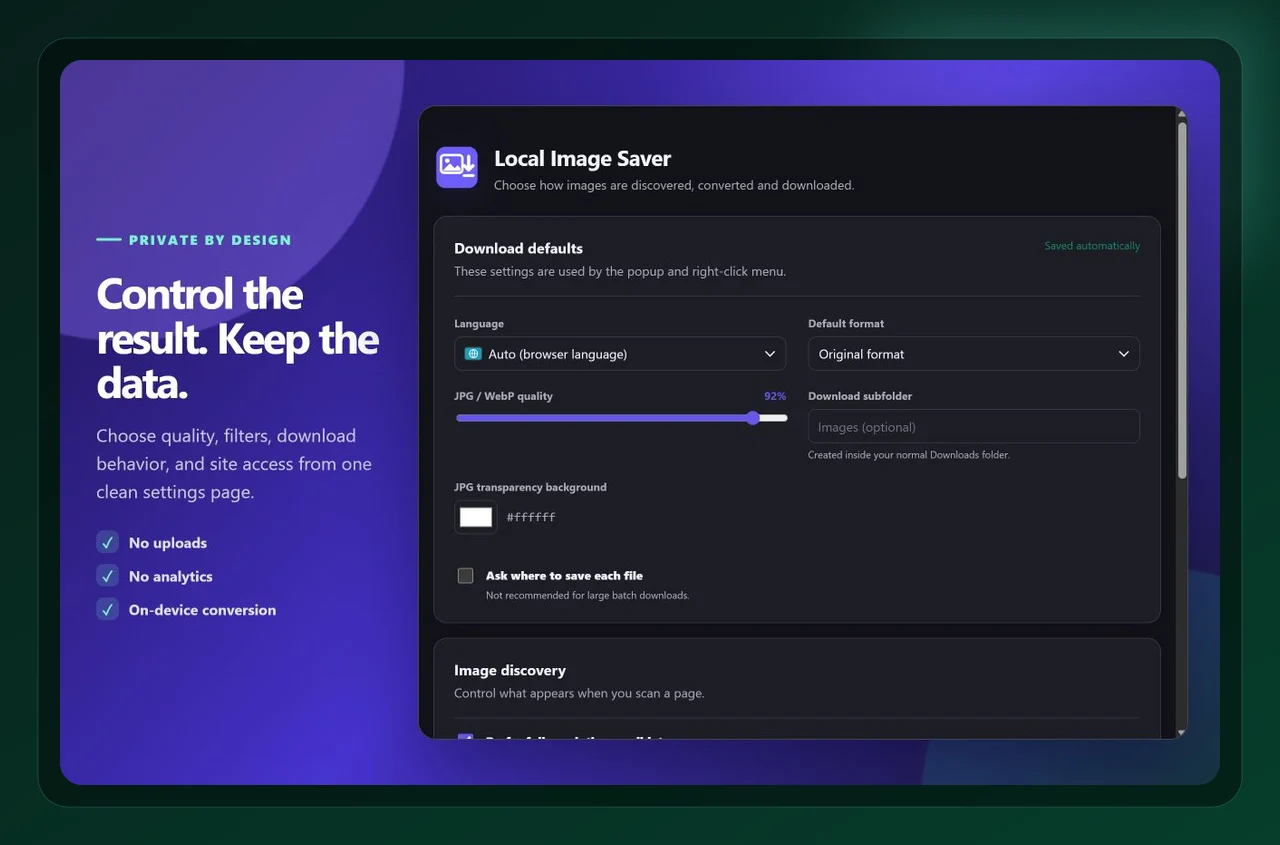
Choose format and quality deliberately
PNG is the preservation choice for transparency. It is worth the larger file size when the asset must sit cleanly over multiple surfaces. If a solid photographic background is intended, JPG may still be more efficient. Format is a workflow decision, not a cosmetic afterthought. Think about the destination first: compatibility, file size, crisp edges, transparency, and future editing. A carefully chosen output saves time later because a teammate can open it, upload it, or place it without another round of conversion.
A quick quality-control checklist
- Choose PNG for logos, icons, cutouts, and overlays.
- Test transparency on a contrasting background.
- Avoid JPG for an asset that needs alpha transparency.
- Keep a source copy before adding a background or shadow.
- Use sensible dimensions; a transparent PNG can become large quickly.
These checks take less time than repairing a poor download later. They also make a workflow easier to hand to another person: the source is clear, the output is intentional, and the destination folder tells the next person what the files are for.
Frequently asked questions
Will JPG keep a transparent background?
No. JPG has no alpha channel. A transparent source must be flattened onto a chosen color when saved as JPG.
Is WebP transparency better than PNG transparency?
Both can support transparency. PNG is often the more predictable interchange format when the asset will be edited, placed in documents, or handed to tools with uneven WebP support.
Why does my saved image have a white background?
You may have downloaded a flattened variant or converted to a format without alpha. Inspect the source and choose PNG when transparent pixels are part of the requirement.
Final takeaway
The practical way to save transparent WebP images as PNG is to make the source, size, and format choices in one place instead of patching them together after the fact. Local Image Saver helps you do that directly in Chrome. Install Local Image Saver from the Chrome Web Store, or learn more about the product, then use the workflow on a real page before relying on it for a larger collection.

Local Image Saver
Save full-resolution images, convert formats in your browser