
7/22/2026 · Goodchoice Team
How to Download All Images from a Website in Chrome
If you need to download all images from a website in Chrome, the hard part is usually not clicking Download. The difficult part is getting a file that is right for the next job: the right image candidate, the right dimensions, and the right format. Saving every image one by one is slow, but “download everything” can be even worse when a page includes thumbnails, decorative assets, tracking pixels, responsive duplicates, and images you do not need. This guide explains a repeatable Chrome workflow that replaces guesswork with a clear source-and-format decision.
Why this problem keeps appearing in Chrome
A productive image workflow needs selection before download. The useful question is not simply how to collect every file; it is how to collect the right group of images with enough context to review them later. What you see in the browser is not always the file you should keep. Websites optimize assets for layouts, connection speeds, and device screens. Your job after the download may be very different: add an image to a report, make a design reference, upload a product image, build a presentation, or preserve an asset for later review. A deliberate download workflow gives you control over that handoff.
What the ordinary Save Image command misses
Repeated right-clicking loses momentum and makes naming inconsistent. Browser developer tools are powerful but are not a convenient handoff for a marketer, designer, researcher, or ecommerce team member. It also hides an important distinction: an image can be displayed at one size while another candidate is available to the page. The filename rarely answers that question. Before you commit to a file, look for practical signals such as preview, dimensions, source variation, and whether the image is a decorative element or the content you came to collect.
A browser-first workflow with Local Image Saver
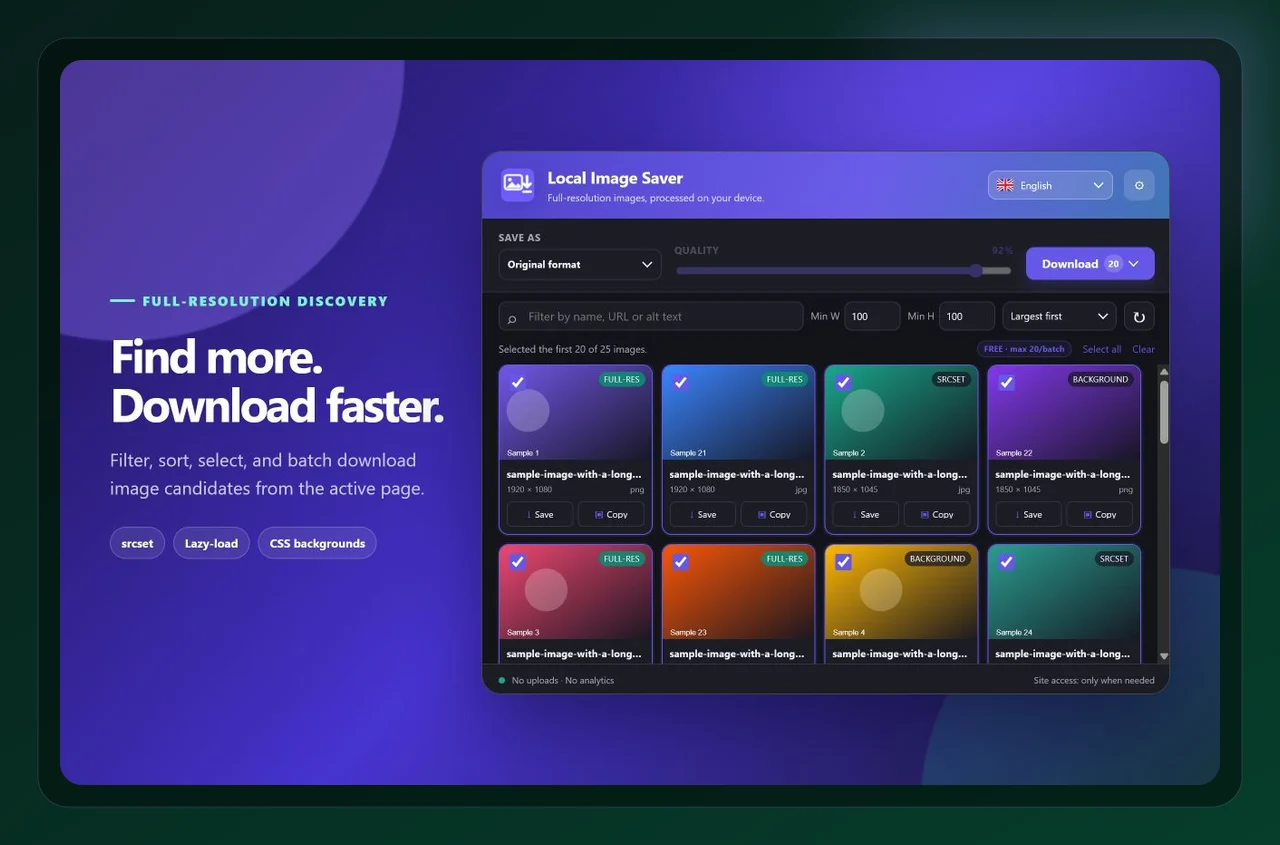
Local Image Saver is built for that decision point. It scans images available in the active page so you can review candidates in one place, then lets you save an original or choose PNG, JPG, or WebP for the selected items. use the page scan to see image candidates together, filter the noisy results, select a deliberate batch, and save them in a chosen format. Local Image Saver keeps this close to the page instead of forcing you into a separate download service. The key advantage is that discovery, selection, conversion, and download remain in one browser workflow. That reduces context switching and makes it easier to repeat the process across several pages.
Step-by-step: download all images from a website in Chrome
1. Start with the page and the outcome you need
Open the target page and scan it after the section you need has loaded. If a gallery loads while scrolling, make sure those visual items are visible first. Before opening the extension, decide what “success” looks like. Is this a source file for an archive, a transparent asset for a designer, a photo for a CMS, or a collection for a research board? That one decision makes the later format and size choices much easier.
2. Review before you download
Filter by minimum width or height, then review the previews and select only the candidates relevant to your task. This is the moment to slow down briefly. A visual preview tells you more than a file extension, and dimensions help distinguish a usable source from a small derivative. If the page has several similar candidates, save one test file and verify it in the tool where it will actually be used.
3. Save a purposeful output
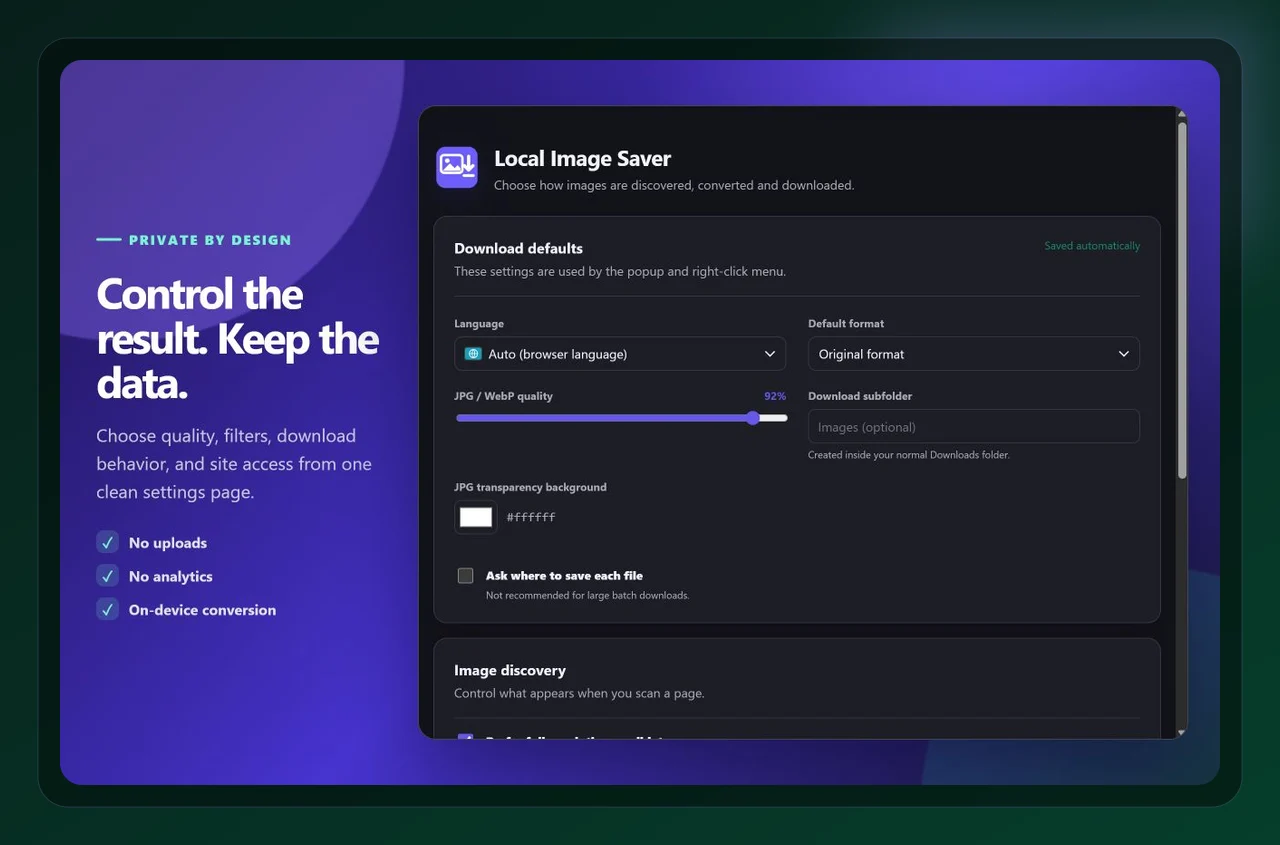
Choose original format for source collection or a single output format for delivery, then download the reviewed batch into a dedicated folder. Keeping an original and a purpose-built working copy is often the most resilient approach. It protects your source while allowing you to meet a specific upload, compatibility, or presentation requirement without retracing the page later.
Choose format and quality deliberately
Batch work deserves a small quality-control step. Validate the first few files, then scale up. That protects you from downloading hundreds of thumbnails when the useful assets were a handful of large images. Format is a workflow decision, not a cosmetic afterthought. Think about the destination first: compatibility, file size, crisp edges, transparency, and future editing. A carefully chosen output saves time later because a teammate can open it, upload it, or place it without another round of conversion.
A quick quality-control checklist
- Create one folder per research task or client.
- Filter small UI assets before selecting a batch.
- Review a sample before committing to a larger group.
- Keep source images separate from images you edit or publish.
- Document where each batch came from when usage rights matter.
These checks take less time than repairing a poor download later. They also make a workflow easier to hand to another person: the source is clear, the output is intentional, and the destination folder tells the next person what the files are for.
Frequently asked questions
Can I download every image from every type of page?
Pages differ in how they load and expose assets. A scan can surface discoverable candidates in the active page, but it cannot replace permissions or access that the website does not provide.
Should I save the original format or convert everything?
For research and archival work, original format is usually safest. For a defined upload or slide-deck workflow, one consistent output format can make the next step easier.
How do I avoid duplicate images?
Use dimensions, previews, and filenames to compare candidates before selection. Responsive pages often include multiple variants of the same visible image.
Final takeaway
The practical way to download all images from a website in Chrome is to make the source, size, and format choices in one place instead of patching them together after the fact. Local Image Saver helps you do that directly in Chrome. Install Local Image Saver from the Chrome Web Store, or learn more about the product, then use the workflow on a real page before relying on it for a larger collection.

Local Image Saver
Save full-resolution images, convert formats in your browser