
7/22/2026 · Goodchoice Team
How to Batch Download Product Images for Design Research
If you need to batch download product images for design research, the hard part is usually not clicking Download. The difficult part is getting a file that is right for the next job: the right image candidate, the right dimensions, and the right format. Design research can require dozens of references across product pages, category pages, and competitor galleries. Collecting them one at a time wastes attention, while indiscriminate downloads leave a folder full of duplicate thumbnails and unrelated interface assets. This guide explains a repeatable Chrome workflow that replaces guesswork with a clear source-and-format decision.
Why this problem keeps appearing in Chrome
Good research depends on context. You need to keep the useful product shots, understand which size is credible, and retain enough source information to cite the reference internally without assuming that download equals permission to republish. What you see in the browser is not always the file you should keep. Websites optimize assets for layouts, connection speeds, and device screens. Your job after the download may be very different: add an image to a report, make a design reference, upload a product image, build a presentation, or preserve an asset for later review. A deliberate download workflow gives you control over that handoff.
What the ordinary Save Image command misses
Right-clicking each image makes it difficult to maintain a consistent folder structure. It also encourages rushed choices, such as saving a small carousel thumbnail instead of the stronger image variant available on the page. It also hides an important distinction: an image can be displayed at one size while another candidate is available to the page. The filename rarely answers that question. Before you commit to a file, look for practical signals such as preview, dimensions, source variation, and whether the image is a decorative element or the content you came to collect.
A browser-first workflow with Local Image Saver
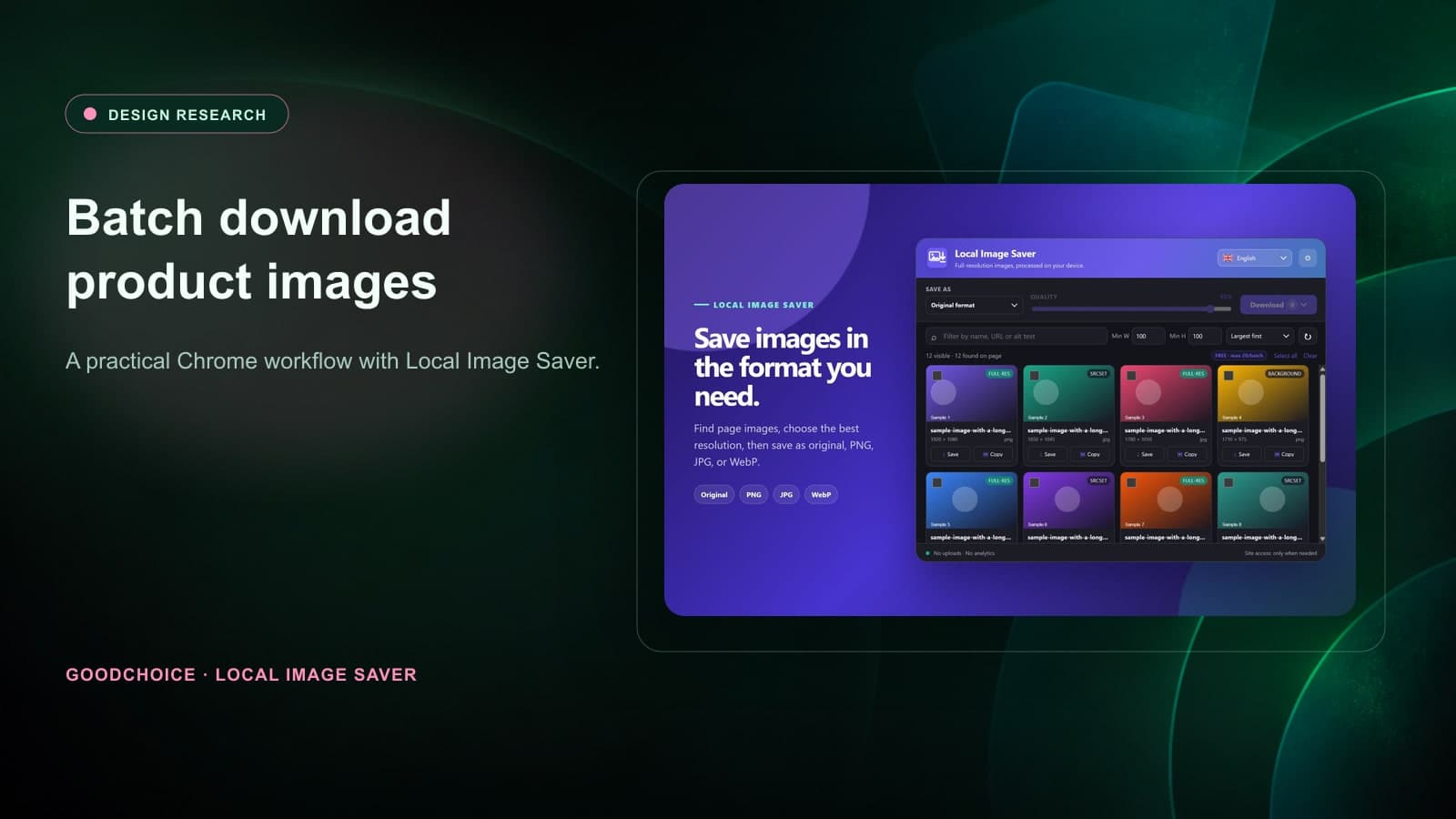
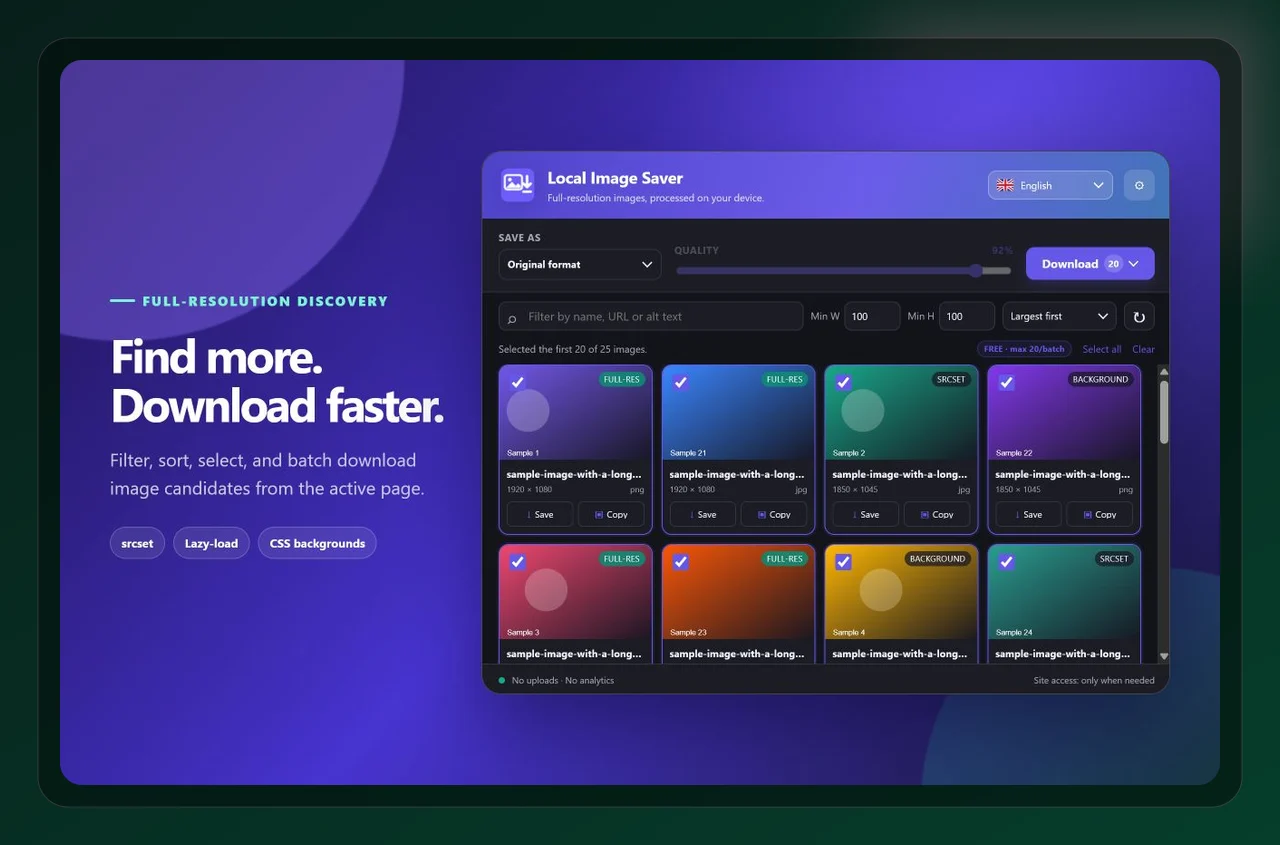
Local Image Saver is built for that decision point. It scans images available in the active page so you can review candidates in one place, then lets you save an original or choose PNG, JPG, or WebP for the selected items. scan the page, filter small elements out, review the selected product images together, and save a purposeful batch. Local Image Saver is designed to make the collection stage faster while you remain responsible for licensing and reuse decisions. The key advantage is that discovery, selection, conversion, and download remain in one browser workflow. That reduces context switching and makes it easier to repeat the process across several pages.
Step-by-step: batch download product images for design research
1. Start with the page and the outcome you need
Create a destination folder for one brand, category, or audit question before opening pages. A clear folder prevents later sorting work. Before opening the extension, decide what “success” looks like. Is this a source file for an archive, a transparent asset for a designer, a photo for a CMS, or a collection for a research board? That one decision makes the later format and size choices much easier.
2. Review before you download
Scan each relevant page, filter by image size, and select product imagery rather than icons, backgrounds, or thumbnails. Review the previews before download. This is the moment to slow down briefly. A visual preview tells you more than a file extension, and dimensions help distinguish a usable source from a small derivative. If the page has several similar candidates, save one test file and verify it in the tool where it will actually be used.
3. Save a purposeful output
Save the batch in original format when you are preserving evidence, or create consistent working copies only when a board or presentation requires a specific format. Keeping an original and a purpose-built working copy is often the most resilient approach. It protects your source while allowing you to meet a specific upload, compatibility, or presentation requirement without retracing the page later.
Choose format and quality deliberately
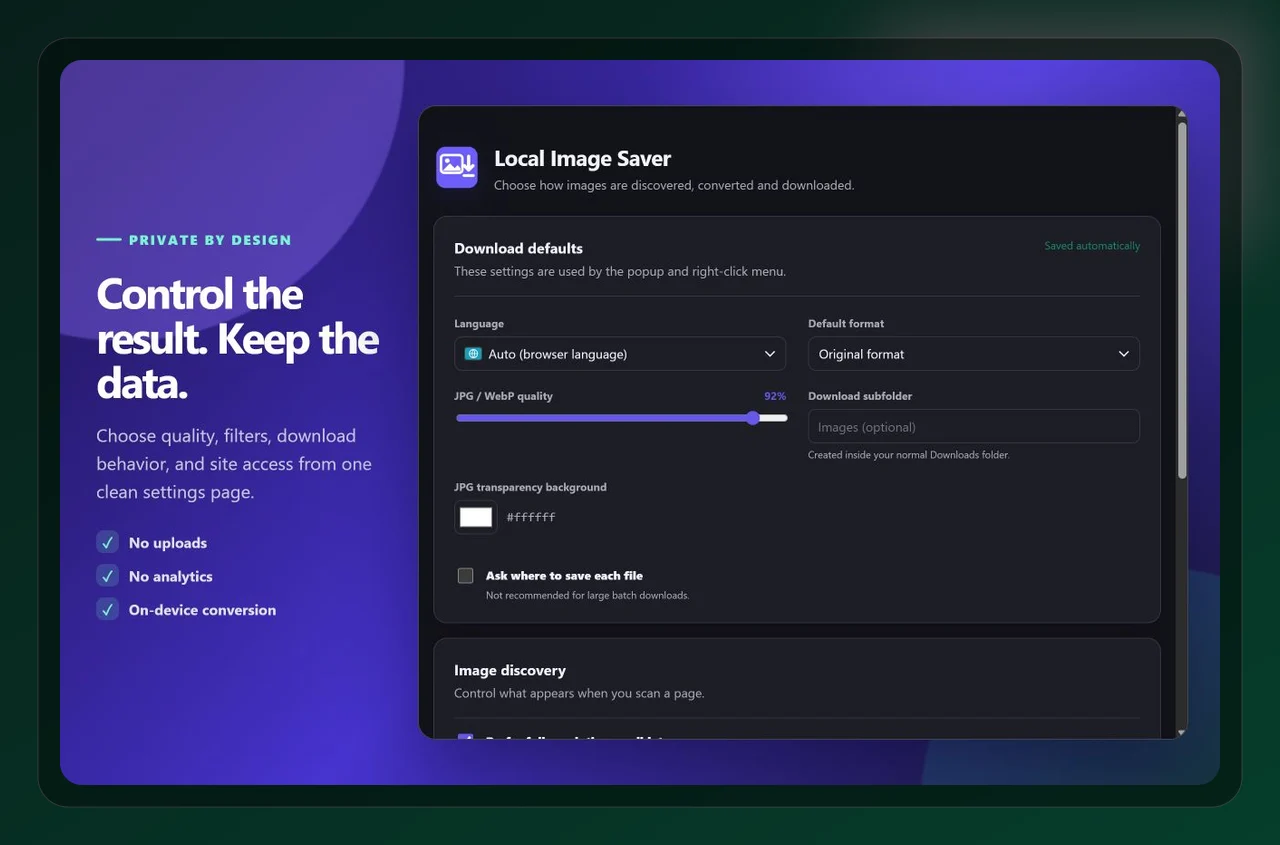
Research assets are references, not automatically cleared marketing materials. Keep them clearly separated from files approved for publication, and note the source page, date, and intended internal use. Format is a workflow decision, not a cosmetic afterthought. Think about the destination first: compatibility, file size, crisp edges, transparency, and future editing. A carefully chosen output saves time later because a teammate can open it, upload it, or place it without another round of conversion.
A quick quality-control checklist
- Organize references by brand, product category, and collection date.
- Filter out small interface assets before batch selection.
- Keep URLs or source notes alongside the downloaded files.
- Treat downloaded materials as research references unless usage rights are confirmed.
- Use original files for evidence and separate resized copies for slides or boards.
These checks take less time than repairing a poor download later. They also make a workflow easier to hand to another person: the source is clear, the output is intentional, and the destination folder tells the next person what the files are for.
Frequently asked questions
Is it legal to download product images for research?
The answer depends on jurisdiction, terms, and intended use. Internal reference and public reuse are different questions. Always respect copyright, licensing, and the website’s terms.
How do I keep research folders useful?
Use a naming convention and collect only relevant candidates. A small, reviewed set with source notes is more valuable than an unfiltered bulk download.
Should I convert product images to PNG?
Usually not for photographic product images unless a specific workflow needs it. Keep originals for reference and use JPG or WebP copies only when that helps the destination.
Final takeaway
The practical way to batch download product images for design research is to make the source, size, and format choices in one place instead of patching them together after the fact. Local Image Saver helps you do that directly in Chrome. Install Local Image Saver from the Chrome Web Store, or learn more about the product, then use the workflow on a real page before relying on it for a larger collection.

Local Image Saver
Save full-resolution images, convert formats in your browser